

Workspace templates & shared mounts
Workspace templates
Section titled “Workspace templates”A workspace template defines:
- The container image to use.
- Which launchers (apps) are available and how to start them.
- Default resource suggestions (CPU, memory).
- Optional per-workspace-template environment variables.
Global vs. user-owned workspace templates
Section titled “Global vs. user-owned workspace templates”| Scope | Owner | Who sees it |
|---|---|---|
| Global | root (admin) | All users |
| User-owned | Regular user | That user only |
The admin manages global workspace templates from the
Workspace templates admin area (/admin/templates). For regular users, Workspace templates (under
their Advanced tools menu) opens on My workspace templates and also contains Workspace templates,
My images, and My build history. The former separate user Images page and navigation item
have been removed.
Workspace templates contains every shipped workspace template, including workspace templates the administrator has not enabled or built yet. A user can create a workspace from a ready workspace template or choose Clone & customize to make a private copy. Dockerfile-backed workspace templates copy an editable build context into the user’s work directory; registry-backed workspace templates keep their image reference.
My images first lists image name, size, creation date, and Not checked for active containers. Choosing Manage loads the more expensive active-container, delete, and untracked-container checks. Make workspace template remains available without that scan. The page also renders My workspace templates before reusable global presets finish loading, so a busy Podman inventory does not block the user’s own work.
Creating or editing a global workspace template
Section titled “Creating or editing a global workspace template”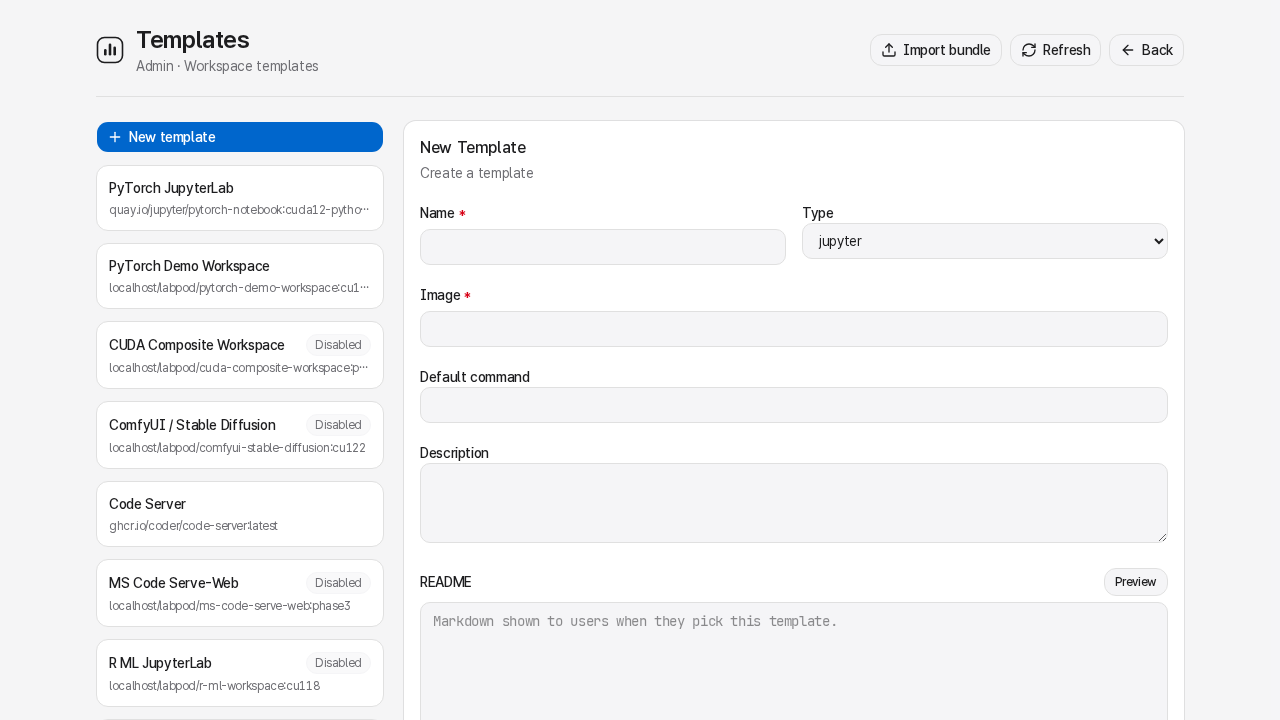
- Open Workspace templates (
/admin/templates) → New workspace template to open the creation form. - Enter a name, a container image reference (e.g.
docker.io/pytorch/pytorch:2.3.0-cuda12.1-cudnn8-runtime), and resource defaults. Image references must include an explicit registry host such asdocker.io,ghcr.io,quay.io, ornvcr.io; unqualified names such aspython:3.11are rejected because the host’s Podman search-registry policy would make the source ambiguous. - Add app launchers. Prefer Import launcher to copy a definition from the reusable catalog;
use a manual launcher entry only for one-off apps. Launcher commands that start an app must
bind
${HOST_PORT}and usually pass${AUTH_TOKEN}or${BASE_PATH}to the app. - Save. Enabled workspace templates appear in all users’ workspace creation dialogs immediately.
Built-in workspace templates continue receiving shipped updates when you only enable or disable them. Editing their definition pins it to the administrator’s version instead; Reset to shipped defaults restores the bundled definition without changing enabled status or accepted terms. An upgrade never turns on a built-in workspace template you deliberately left disabled.
Published vs. locally built images
Section titled “Published vs. locally built images”Workspace templates now show an Artifact source next to their image: Published image means LabPod downloads a tested image pinned to an exact version; Locally built means each researcher builds the workspace template’s Dockerfile in their own account. Fourteen of the sixteen built-in workspace templates - PyTorch, PyTorch Demo, TensorFlow, SciPy, Anaconda, Code Server, CUDA Composite, LLM/Hugging Face, ComfyUI, R ML, RStudio, Parallel Programming, Miniforge, and uv - ship as published images: enabling one needs no build, just a download, and researchers can start that download themselves. Only MATLAB and MS Code Serve-Web are local-build, because LabPod isn’t allowed to redistribute either image. The administrator enables the recipe; each researcher builds it during workspace setup.
Every published workspace template still ships its Dockerfile so you can inspect, clone, or export it. If you
edit that Dockerfile - directly on a clone/import, or by pointing the workspace template at a different image
reference - LabPod marks the workspace template UserModified and stops applying the shipped default,
including its CUDA auto-selection (see below). Reset to shipped defaults clears that and
returns the workspace template to the published, auto-selected image.
CUDA build auto-selection
Section titled “CUDA build auto-selection”For PyTorch, LLM/Hugging Face, ComfyUI, CUDA Composite, and Parallel Programming, LabPod reads the
host’s detected NVIDIA driver and GPU generation and selects the highest CUDA build both support
(for example, driver 525 selects v2-cu121). This runs once when a fresh install first seeds these
workspace templates, and again on every later image preparation as long as an admin hasn’t manually edited
that workspace template’s image reference. A driver upgrade takes effect within about five minutes, without
restarting LabPod. TensorFlow bundles its own CUDA in a single tag and the CPU-only workspace templates need
no CUDA build, so neither is part of auto-selection.
To update an existing workspace template’s image by hand (after pulling a new version, or to pin a specific CUDA build):
- Open the workspace template in the admin UI.
- Edit the Image field.
- Save. New workspaces created from this workspace template will use the new image; existing running workspaces are unaffected.
Reusable launcher catalog
Section titled “Reusable launcher catalog”Root admins manage reusable launcher definitions from Launchers (/admin/launchers, under
Workspace templates). Select New launcher to open the creation form.
Each catalog launcher defines the app name, label, container port, protocol, command template, readiness path, probe command, install hint, optional start-time fields, and whether LabPod strips the proxy prefix. When you import a catalog launcher into a workspace template, LabPod copies the definition into that workspace template. Later catalog edits do not rewrite existing workspace templates.
Use the catalog for common apps such as JupyterLab, TensorBoard, MLflow, code-server, RStudio, MATLAB, and ComfyUI. Use manual workspace-template ports only when the app is specific to one workspace template.
The composite workspace image
Section titled “The composite workspace image”LabPod includes composite workspace templates - images that bundle JupyterLab, code-server, TensorBoard, MLflow, Aim, and a web terminal in one container.
The workspace template CUDA Composite Workspace is enabled by default and pulls a published
ghcr.io/labpod/cuda-composite image (CUDA build auto-selected for the host, default
v2-cu126); nothing to build. Edit its image reference only if you need to pin a different CUDA
build or point it at your own composite image - doing so opts that workspace template out of CUDA
auto-selection.
The workspace template PyTorch Demo is a similar published-image showcase: it pulls the public
ghcr.io/labpod/pytorch-demo image (v2-cpu, CPU-only - not part of CUDA auto-selection),
so you can enable it without building anything. It ships disabled because it’s an opt-in extra, not
because it needs preparation. Its demo notebooks are seeded on first start.
Export and import
Section titled “Export and import”Users can export their own workspace templates as a bundle (TAR with manifest + image digest references) and share them with other deployments. Admins can export global workspace templates the same way.
From the workspace template detail page → Export. To import from the UI: Workspace templates (admin) or Advanced tools → Workspace templates (regular users) → Import → upload a bundle or provide a bundle URL → preview → commit.
Admins can also import a host-local bundle from the CLI:
sudo labpod admin template import ./template.tar --globalsudo labpod admin template import ./template.tar --owner alice# Run these as rootlabpod admin template import ./template.tar --globallabpod admin template import ./template.tar --owner aliceCLI imports land disabled for review. A root import preserves a Dockerfile and its context as a global recipe without building it; researchers build the enabled recipe in their own accounts.
Shared mounts
Section titled “Shared mounts”A shared mount is a host directory that LabPod bind-mounts into every workspace. Typically used for large read-only datasets or a shared writable directory.
Creating a shared mount
Section titled “Creating a shared mount”From Shared mounts (/admin/shared-mounts, under System) → New shared mount:
- Name - the label shown in the UI (e.g.
datasets). - Host path - the host directory to mount (e.g.
/data/datasets). - Container path - where it appears inside workspaces (e.g.
/data). - Read-only - checked by default; uncheck for writable sharing.
The mount applies to new workspaces. Existing running workspaces are not affected until they are stopped and restarted.
Constraining allowed paths
Section titled “Constraining allowed paths”By default the admin can configure any host path. To restrict which roots are allowed:
# In /etc/labpod/labpod.env:LABPOD_SHARED_MOUNT_ROOTS=/data,/datasetsThis prevents accidental mounts of sensitive system directories.
Built-in /shared mount
Section titled “Built-in /shared mount”The install script creates /shared as a root-owned directory. LabPod automatically creates
/shared/<username> for each user (readable by other users). This enables lightweight
cross-user data sharing: user Alice can read /shared/bob/ from inside her workspace.
Per-user image storage
Section titled “Per-user image storage”Every non-root Linux account pulls or builds workspace images in its own rootless Podman store. Published global workspace templates download from their registry during that researcher’s workspace setup. Local recipes such as MATLAB and MS Code Serve-Web build from the administrator-enabled recipe in that researcher’s account. A user manages their own images from Advanced tools → Workspace templates → My images.
The root admin owns global workspace template definitions, but has no workspace image store in
LabPod. Root cannot list, pull, build, delete, or prune workspace images and cannot remove another
user’s images. Root and other superusers may observe per-user image usage and operation history
from Monitoring (/admin/resources).
LabPod deliberately does not support a root/shared image cache, shared-image scope, duplicate reclaim workflow, or user-to-root image promotion request. Copying a root cache into each rootless store still leaves one complete unpacked copy per user while adding approval, copy, and recovery controls. These features will not be supported for simplicity. Use an external registry or a network registry cache to distribute images, and use shared mounts for large common datasets and model weights where sharing actually avoids duplicate storage.
LabPod has no registry allowlist or terms-acceptance gate: any structurally valid, registry-qualified image reference is usable in a workspace template. Root’s authority is limited to enabling, disabling, and editing global workspace templates under Workspace templates.