

Users & quotas
import { Steps } from ‘@astrojs/starlight/components’;
LabPod manages two things per user: a LabPod account (login credentials and quotas) and a Linux account on the host (where containers run). These are related but separate.
Everything in this page lives in admin’s People area (/admin/users, root-only), plus a
lab-wide Resource limits table (/admin/policies) that any superuser can view.
Creating a user
Section titled “Creating a user”From the admin UI
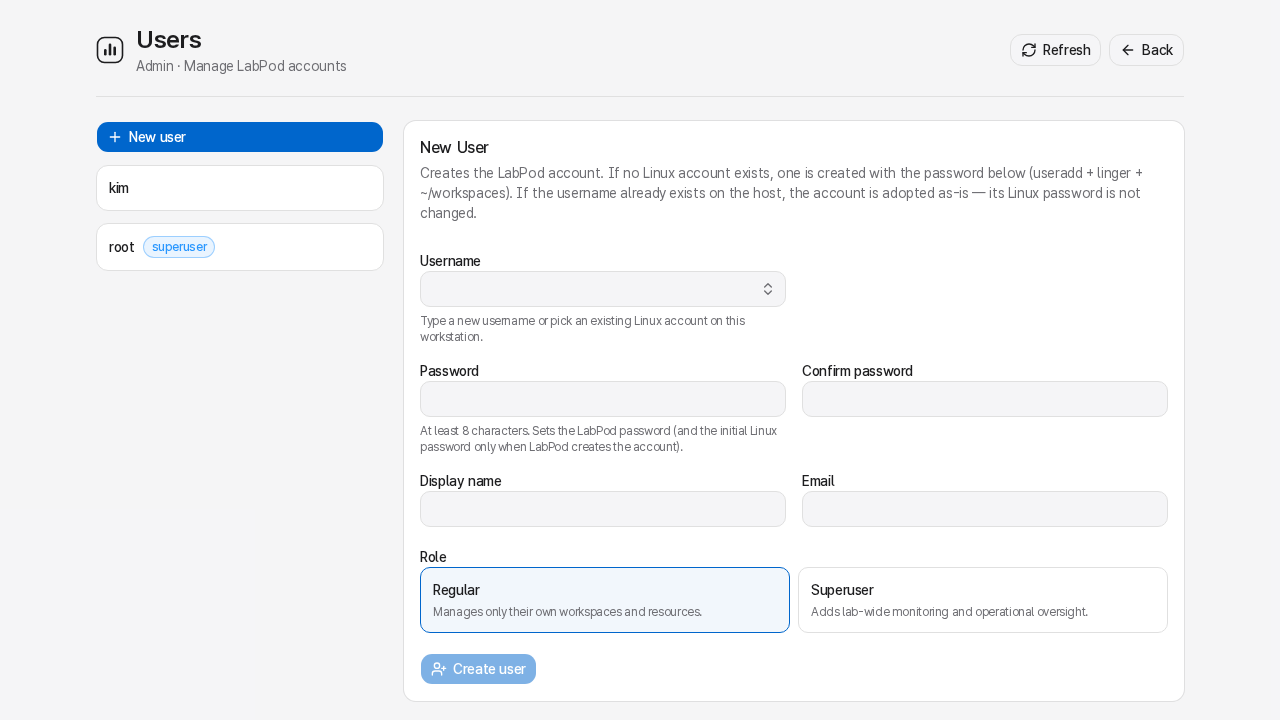
Section titled “From the admin UI”Open People (/admin/users) → New user. Fill in the username and an initial password.
LabPod provisions a Linux account automatically if one doesn’t already exist.
From the CLI
Section titled “From the CLI”# Interactive password promptsudo labpod admin --db /var/lib/labpod/labpod.db create-user alice
# Or pipe the password (for automation)printf '%s\n' 'initial-password' | sudo labpod admin --db /var/lib/labpod/labpod.db create-user alice# Run these as root# Interactive password promptlabpod admin --db /var/lib/labpod/labpod.db create-user alice
# Or pipe the password (for automation)printf '%s\n' 'initial-password' | labpod admin --db /var/lib/labpod/labpod.db create-user aliceNew and changed LabPod passwords are normalized before validation. Regular accounts require 8–64
Unicode characters; root and superuser accounts require 12–64. LabPod rejects common passwords
and easy guesses based on the username or labpod, but does not impose an ASCII-only or
character-class rule. Existing password hashes remain valid after an upgrade; the policy applies
when a password is created or changed.
When LabPod creates a new Linux account it runs:
useradd -m -s /bin/bash <username>- creates the account and home directory.chpasswd- sets the initial Linux password (same as the LabPod password at creation time).loginctl enable-linger <username>- keeps the user’s systemd slice running after logout, so rootless containers survive a browser disconnect.- Creates
workspaces/beneath the HOME recorded in the Linux account database. WhenLABPOD_WORK_BASEis unset, it also prepares<passwd-home>/work/; an explicit work base puts that shared work tree at<work-base>/<username>/work/instead. - Creates
/shared/<username>/(readable by all users) if the/sharedroot exists.
If a Linux account with that username already exists, LabPod adopts it at the HOME recorded in the host account database. It enables linger and creates the required workspace directories, but never modifies the existing Linux password or HOME. To onboard several existing accounts at once, use Adopt existing Linux accounts on the People page - it gives each one a temporary LabPod password without touching any Linux password.
Lab defaults for future users
Section titled “Lab defaults for future users”People has a Lab defaults card: the CPU/memory/GPU/disk-alert allowance that a newly created account starts with. Changing lab defaults never changes an existing person’s limits - it only sets what the New user form pre-fills from then on. Override an individual account’s limits at creation time (or later - see Per-user quotas) when someone needs more or less than the lab default.
LabPod password vs. Linux password
Section titled “LabPod password vs. Linux password”These are fully independent credentials after account creation:
| What | Where | Who can change it |
|---|---|---|
| LabPod password | LabPod database | User (Settings page), admin (set-password) |
| Linux password | Host /etc/shadow | Only the host admin, outside LabPod |
Changing a LabPod password via the UI or set-password never modifies the Linux password.
The Linux password is only set once, during the initial create-user call, and is otherwise
LabPod’s concern.
Resetting a LabPod password
Section titled “Resetting a LabPod password”sudo labpod admin --db /var/lib/labpod/labpod.db set-password alice# Or pipe:printf '%s\n' 'new-password' | sudo labpod admin --db /var/lib/labpod/labpod.db set-password alice# Run these as rootlabpod admin --db /var/lib/labpod/labpod.db set-password alice# Or pipe:printf '%s\n' 'new-password' | labpod admin --db /var/lib/labpod/labpod.db set-password aliceListing users
Section titled “Listing users”sudo labpod admin --db /var/lib/labpod/labpod.db list-users# Run these as rootlabpod admin --db /var/lib/labpod/labpod.db list-usersThe PROVISIONING_CLEANUP_REQUIRED column (and the People page’s Account setup incomplete
label, and the API’s provisioning_cleanup_required field) marks an account whose failed creation
also failed to clean up the Linux account it had started provisioning - not an administrator
disable switch. LabPod access is blocked until you investigate the account-creation logs and
resolve the incomplete setup; Linux/SSH access to that account is not locked by this state, and
there is no command to toggle it back on directly.
| Role | How to identify | What they can do |
|---|---|---|
| Root admin | Username is root | People, global Workspace templates, System, audit logs, monitoring, and force-stop any workspace; no workspace or image ownership |
| Superuser | Superuser flag set | View all workspaces, Monitoring, Usage report, and Audit; no configuration mutations |
| Regular user | Default | Own workspaces, workspace templates, and files only |
Admin authority boundary
Section titled “Admin authority boundary”An admin can:
- View and monitor any workspace.
- Force-stop any workspace (recorded in the audit log).
An admin cannot (without OS-level access):
- Enter another user’s terminal session.
- Start, edit, or launch apps in another user’s workspace.
- Delete another user’s workspace.
- View another user’s files via the LabPod file manager.
- List, pull, build, delete, or prune workspace images, including another user’s images.
Per-user quotas
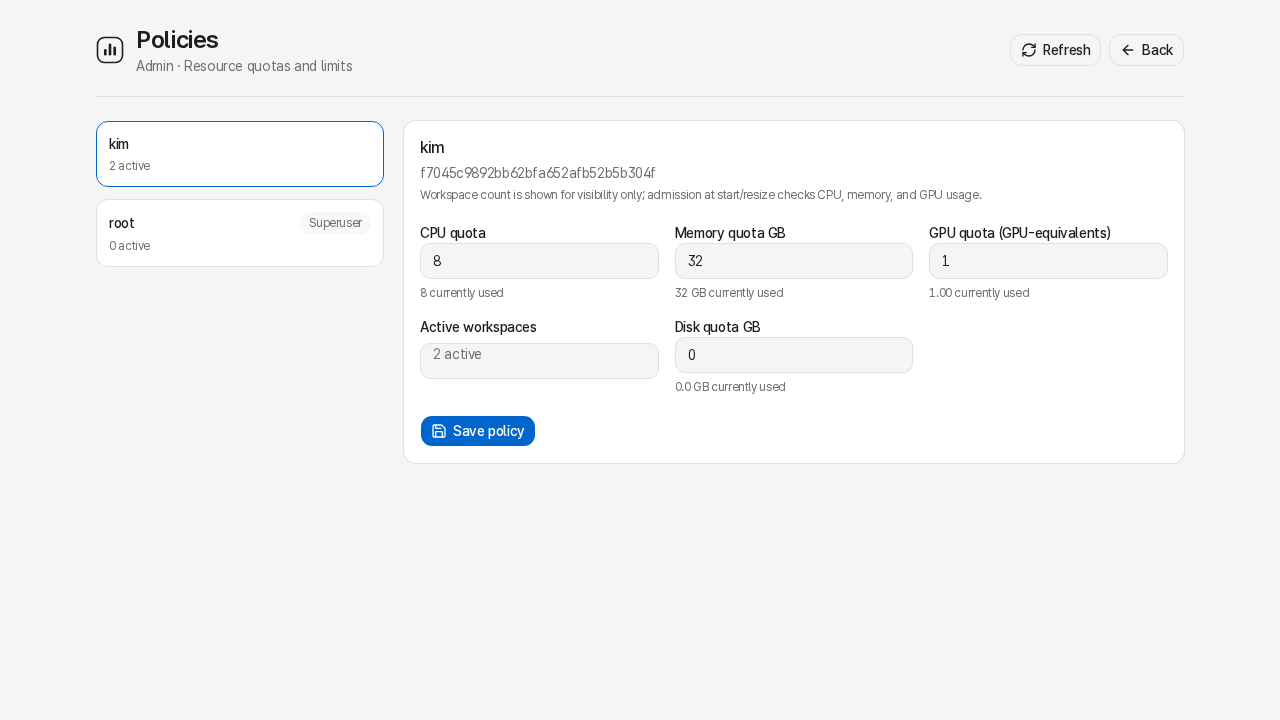
Section titled “Per-user quotas”Select a person on People (/admin/users) to edit their individual resource limits, or use
the lab-wide Resource limits table (/admin/policies, view-only for a superuser who isn’t
root) to compare everyone’s quotas and current usage at a glance.
| Quota | What it limits |
|---|---|
| Max CPU | Total cores across all running workspaces |
| Max memory | Total RAM (GB) across all running workspaces |
| Max GPU fraction | Total GPU allocation (1.0 = one full GPU) across running workspaces |
| Disk alert | Advisory GB threshold for the user’s account home and relocated work area |
A person’s limits card marks whether they’re currently on the Lab default or a Custom override, and a Use lab defaults action resets them back.
CPU, memory, and GPU quotas are enforced at workspace start time when their host support is effective. Disk use is measured and can raise an alert, but LabPod never blocks a write or a workspace start for disk use. Running workspaces are not stopped when an admin lowers a quota.
Owner-only Podman identity migration
Section titled “Owner-only Podman identity migration”If LabPod detects that a person’s rootless Podman subordinate-UID/GID mapping needs migrating (most often after moving a pre-existing Linux account under LabPod, or after a subuid/subgid range repair), People shows that person with an owner action marker and a read-only status. Admins can see that migration is pending; they cannot start it for someone else. The affected person runs it themselves from their own Settings page, where a confirmation dialog explains that it stops their running containers before migrating, and offers Migrate later if now isn’t a good time. See Settings for the account holder’s side of this flow.
Deleting a user
Section titled “Deleting a user”From People: removes the LabPod database record
and revokes all sessions. The Linux account and home directory are preserved - LabPod never
calls userdel. If you want to reclaim disk space, do so manually as a host admin.
Re-adding the same username later adopts the existing Linux account.