

Quotas & usage
Your quotas
Section titled “Your quotas”Each LabPod user has resource limits set by the admin:
| Limit | What it controls |
|---|---|
| CPU | Maximum cores across all your running workspaces |
| Memory | Maximum total GB across all your running workspaces |
| GPU fraction | Maximum GPU equivalent (1.0 = one whole GPU) across all your workspaces |
| Disk | Advisory usage-alert threshold for your account home and any relocated work area |
Admission - LabPod checks your remaining quota when you click Start. If starting the workspace would push a CPU, memory, GPU, or workspace-count limit over its cap, Start is refused and an error tells you which limit is the problem. Disk use is reported but never blocks a write or a workspace start. Existing running workspaces are not killed when an admin changes your quotas.
What if the GPU I requested isn’t free?
Section titled “What if the GPU I requested isn’t free?”You can create a workspace with more GPUs than are currently free. The workspace sits in stopped state until you click Start, and LabPod grants the GPUs at that point. It won’t let you Start if the live count can’t satisfy the request.
Reading your usage
Section titled “Reading your usage”The Usage page - open the Account menu (click your username in the top-right corner) and choose Usage - shows your daily CPU and GPU hour usage for the past 12 months.
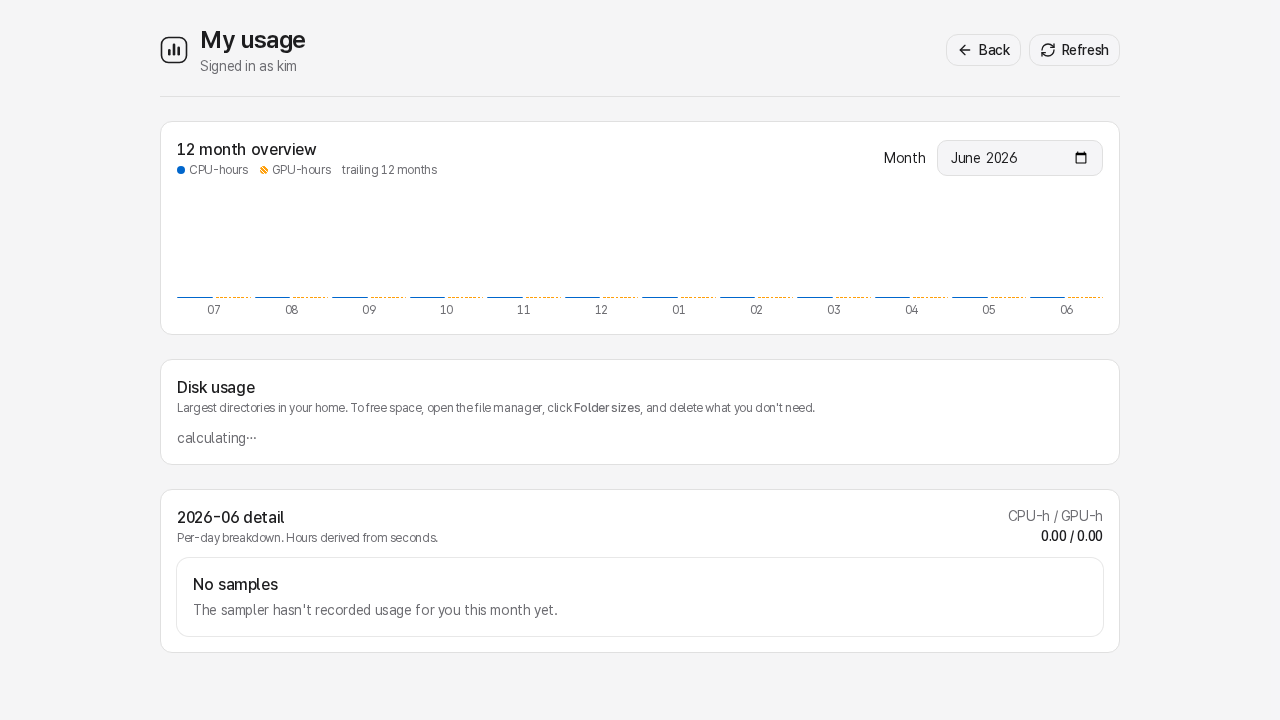
Switch months with the year and month selectors, or select a bar in the 12-month chart. Reporting periods and CSV dates are UTC. Header help explains the difference between reserved GPU-hours and actual GPU memory use, and Peak disk covers your saved workspace software rather than Podman storage internals. A month with nothing recorded says so plainly instead of showing an empty chart.
The admin can also see usage for all users. If your admin needs a CSV export, they can download one from the admin usage view.
Disk level warnings
Section titled “Disk level warnings”The home page shows a disk warning if your recorded usage reaches the administrator’s advisory
threshold. Files in /work and your workspace homes count; the page may say calculating or
unavailable while a disk scan runs rather than pretending a missing measurement is zero. Pruning
unused images or removing old checkpoints from /work frees space.
Container identity migration
Section titled “Container identity migration”If your Settings page shows a Migrate now prompt, LabPod has detected that your rootless Podman ID mapping needs migrating (most often after your account was moved under LabPod, or after your admin repaired a subuid/subgid range). Only you can run this - your admin can see that it’s pending but cannot start it for you. The confirmation dialog explains that migrating stops your running containers first; choose Migrate later if now isn’t a good time. Nothing else about your account changes.
Appearance
Section titled “Appearance”Choose System, Light, or Dark from the account menu in the header, or from Appearance on the user settings page. System follows your computer’s own setting. The choice applies immediately, including on the sign-in page, and is remembered per browser - pick it again on another computer to carry it over there too.
Changing your password
Section titled “Changing your password”Open the Account menu (your username in the top-right corner) and choose Settings to change your LabPod password.
- You need your current password to change it.
- New password must be at least 8 characters (12 for
rootand other superuser accounts), at most 64, and not a common or easily guessed password. - Changing your password signs you out everywhere, including your current session. You’ll be redirected to the login page.
- This changes your LabPod password only - your Linux system account password is not affected.
If you have forgotten your password, ask your admin to reset it:
# Run as root, or prefix with sudo on sudo-based systems.labpod admin set-password <your-username># Run these as root# Run as root, or prefix with sudo on sudo-based systems.labpod admin set-password <your-username>